The Essential Plugins Every WordPress Agency Needs After Installing a Builder
Once you have installed your builder or theme, the real work starts. The right plugins turn a WordPress site from a nice-looking build into a stable, secure, and easy-to-manage system. Out of the seven core categories discussed in this guide, most production sites require thoughtful coverage across five foundational areas, while performance and backups are typically conditional based on your hosting provider and frontend architecture.

Written by Artur BurkaloFor over a decade, Artur has worked with agencies, run his own agency, and developed WordPress themes and plugins, including Destiny Elements.
Posted 9 July 2026
Why a builder alone is not enough
Whichever builder or theme you have chosen (Elementor, Bricks, Oxygen, Breakdance, GeneratePress, Kadence), it handles one job well: giving you a visual way to create pages and templates. That is Layer 1 of a production WordPress site.
A visual builder does not harden logins against brute-force attacks, generate an XML sitemap, or tell you whether the colour contrast on a hero section passes WCAG AA. Those jobs fall to the plugin and operations layers. Getting those layers right is what separates a site that looks good on launch day from one that still runs smoothly six months later.
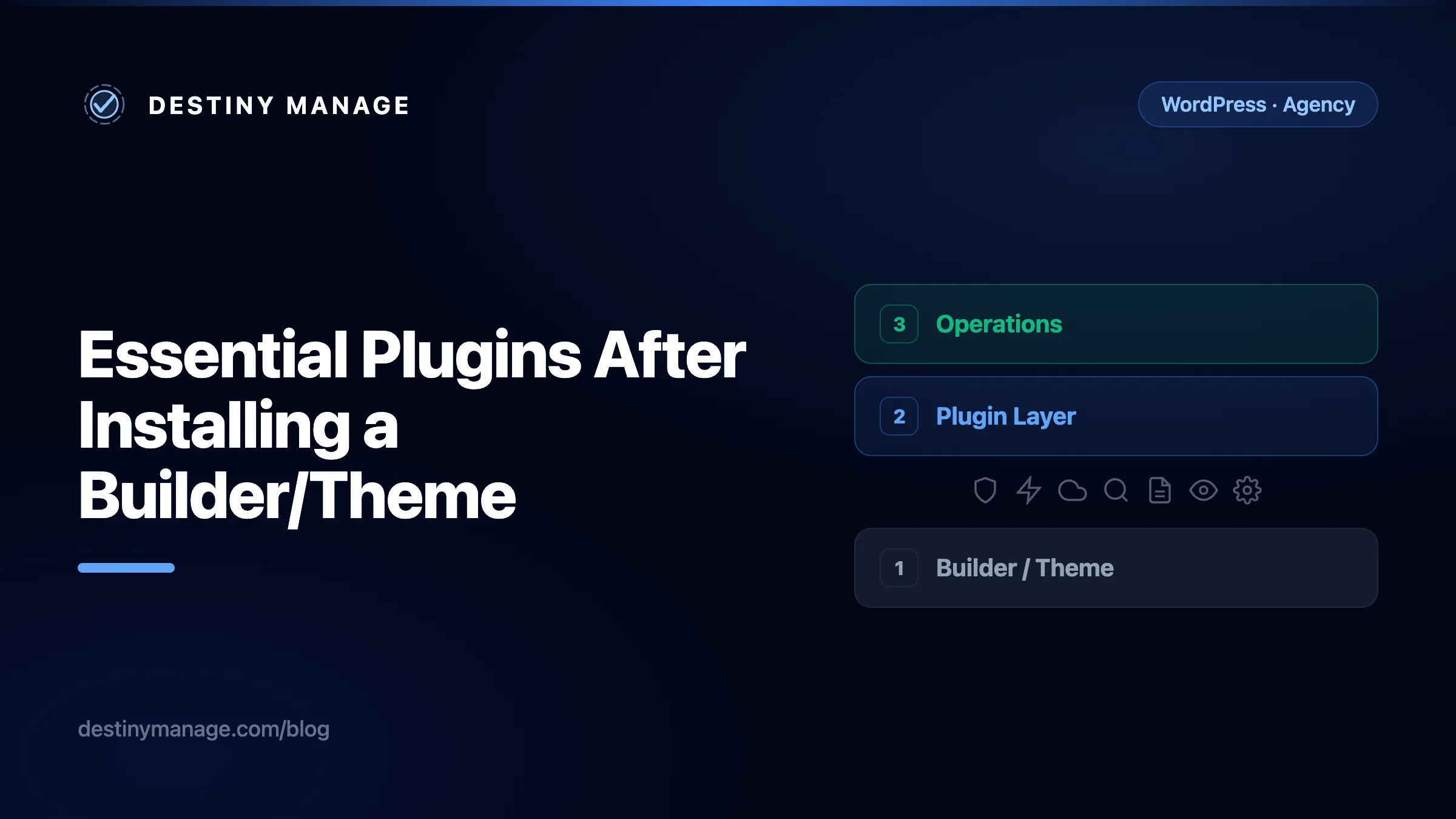
The Three Layers of a Production WordPress Site
A builder gives you the structure. Plugins give you the workflow, protection, and long-term management.
Operations & Client Management
Client-Facing LayerPlugin Layer (5 Essential + 2 Conditional)
Functional & Security LayerBuilder / Theme Layer
Visual Structure LayerMost agencies get Layer 1 right. This guide covers the 5 essential and 2 conditional categories across Layers 2 and 3.
This article walks through seven functional categories that sit above your builder. While most agency builds require thoughtful coverage across security, SEO, forms, accessibility, and client-facing operations, whether you need a standalone plugin for each depends on what your theme, hosting provider, or workflow already covers natively. Performance and backups, in particular, are often handled at the server level.
Performance: speed and Core Web Vitals (Conditional)
A slow site costs you twice. Visitors leave, and Google data shows that bounce probability increases 32% when page load goes from one second to three. Furthermore, Google uses Core Web Vitals (LCP, INP, CLS) as an explicit ranking signal, so poor frontend performance damages your organic search visibility.
However, a third-party performance plugin is not always required. Whether you need one depends on two variables: your hosting provider and your WordPress builder.
| Plugin | Best for |
|---|---|
| SiteGround Optimizer / Host Native | Built-in server caching on SiteGround and managed hosts |
| WP Rocket | Universal caching and file optimization on standard hosts |
| LiteSpeed Cache | Server-level caching on LiteSpeed web servers |
| FlyingPress | Advanced Core Web Vitals and script optimization |
*Note: Active install counts and pricing figures are indicative references based on WordPress directory statistics and standard vendor pricing tiers at publication time.
When optimization plugins are optional or built-in
- Check for built-in hosting optimizers first. Many modern hosting platforms include their own native optimization plugin on every WordPress install. For example, SiteGround automatically deploys SiteGround Optimizer, while Kinsta and WP Engine provide native edge caching. Installing a second caching plugin on top of a host optimizer causes severe cache collisions.
- Always test configuration compatibility with your builder. Whether using SiteGround Optimizer or WP Rocket, every optimization toggle must be thoroughly tested against your specific Builder or Theme. Settings like aggressive JavaScript deferral, CSS merging, or unused CSS removal can easily break builder interactive scripts or layout grids if left unchecked.
- Modern builders can be highly efficient depending on implementation. Next-generation visual builders such as Breakdance, Bricks, and Gutenberg block themes are engineered to output clean, lean HTML and CSS. When paired with disciplined asset loading and server-level caching, efficient builds can deliver strong frontend performance and Core Web Vitals without relying on heavy third-party caching scripts.
- Never stack two caching plugins. If your site requires third-party optimization, use one single caching tool. Running two page caching layers is a leading cause of white screens and broken checkout flows.
Backup and restore: safety and recovery (Conditional)
Saying "we have backups" is easy until an update breaks production and you discover the last archive is three weeks old. Or the file exists, but restoring it requires two hours of manual database import work.
However, for agencies deploying on modern managed WordPress hosts (such as Kinsta, WP Engine, SiteGround, or Cloudways), automated server-level snapshots and one-click staging restores are usually included out of the box. In those environments, installing an extra PHP-driven backup plugin is redundant and can unnecessarily consume server CPU and storage. A backup plugin is only required if your host lacks reliable automated snapshots or if your client contract requires secondary cloud replication to external buckets.
| Plugin | Best for |
|---|---|
| Managed Host Backups (Native) | Server-level snapshots on Kinsta, WP Engine, SiteGround |
| UpdraftPlus | Secondary cloud replication to Google Drive or S3 |
| BlogVault | Dedicated off-site backups for high-traffic WooCommerce stores |
*Note: Active install counts and pricing figures are indicative references based on WordPress directory statistics and standard vendor pricing tiers at publication time.
Agency considerations
- Verify host snapshots first. If your hosting provider provides daily automated snapshots with one-click restoration, rely on server-level backups first and avoid installing heavy PHP backup scripts.
- UpdraftPlus remains the industry standard when you need off-site file replication. It runs reliably on standard servers and exports directly to external cloud storage.
- BlogVault performs incremental backups off-site on their own infrastructure, ensuring backup processes never degrade site performance during peak traffic periods.
- Test your recovery workflow. An untested backup is a wish rather than a recovery strategy. Every quarter, verify that you can restore a client snapshot to a staging environment in under ten minutes.
Security: hardening and monitoring
WordPress powers a large share of the web, which makes it a frequent target for automated attacks. Most compromises aren't sophisticated. They are brute-force login attempts, exploits of known plugin vulnerabilities, or malware injected through outdated themes. A security plugin cannot replace disciplined hosting practices, but it closes the most common entry points.
| Plugin | Best for |
|---|---|
| Wordfence | All-in-one protection; best free version |
| Sucuri | Cloud WAF; DDoS protection |
| Patchstack | Agencies managing many sites; vulnerability intelligence |
*Note: Active install counts and pricing figures are indicative references based on WordPress directory statistics and standard vendor pricing tiers at publication time.
Choosing the right approach
- Wordfence is the default recommendation for most WordPress sites. Its endpoint firewall catches threats at the server level, the malware scanner is thorough, and the free tier is genuinely useful, not a stripped-down teaser.
- Sucuri filters traffic in the cloud before it reaches your server. That's particularly valuable for sites that have been targeted by DDoS attacks or that need the CDN benefits of a cloud WAF. It's a bigger investment, but for e-commerce or membership sites where downtime has a direct revenue cost, it's worth evaluating.
- Patchstack takes a different approach: instead of scanning for malware after the fact, it focuses on known vulnerabilities in your installed plugins and themes, and applies virtual patches before the developer ships an official fix. For agencies maintaining 20+ sites with different plugin stacks, that proactive intelligence is extremely useful.
- Don't install two firewalls. Just like caching plugins, stacking two security plugins that both run a WAF will cause conflicts and can actually increase your attack surface by adding more code to maintain.
SEO: search visibility and metadata control
WordPress handles basic SEO reasonably well out of the box. It generates clean permalinks, supports heading hierarchies, and renders semantic HTML. But it doesn't generate XML sitemaps with fine-grained control, manage canonical URLs across paginated archives, add structured data (schema markup), or give content editors a way to set meta descriptions and social sharing images per page. That's what an SEO plugin does.
| Plugin | Best for |
|---|---|
| Rank Math | Feature-rich free tier; power users |
| Yoast SEO | Industry standard; beginners |
| SEOPress | Agencies; white-label; lightweight |
*Note: Active install counts and pricing figures are indicative references based on WordPress directory statistics and standard vendor pricing tiers at publication time.
Which one matters for agencies
- Rank Math has become the default recommendation for agencies that want advanced features without paying for a premium plan. Its free tier includes redirect management, 404 monitoring, and advanced schema markup, all features that Yoast locks behind its premium version. The modular design lets you disable features you don't use, keeping the plugin lightweight.
- Yoast SEO is still the most widely installed SEO plugin on the planet. If a client's content team has been trained on Yoast's traffic-light system, switching them to a different plugin introduces friction that may not be worth the feature gains. Familiarity has value.
- SEOPress is worth a look if white-labelling matters to you. It lets agencies remove all plugin branding from the WordPress dashboard, which is useful when you're presenting the CMS as part of your own managed service. It's also the lightest of the three in terms of database queries.
Forms and lead capture: conversions
Most WordPress sites need at least a contact form. Many need more: quote request forms, multi-step lead qualification flows, event registrations, or payment forms for deposits. The builder's built-in form widget usually covers the basics, but it rarely integrates with a CRM, handles conditional logic well, or gives you the kind of submission management that an agency needs when multiple team members handle enquiries.
| Plugin | Best for |
|---|---|
| Gravity Forms | Complex forms; developer ecosystem |
| WPForms | Beginners; template library |
| Fluent Forms | Best value; fast performance |
*Note: Active install counts and pricing figures are indicative references based on WordPress directory statistics and standard vendor pricing tiers at publication time.
Agency trade-offs
- Gravity Forms is the developer's choice for a reason. Its hook and filter system is mature, its ecosystem of third-party add-ons is massive, and it handles complex workflows (multi-page surveys, user registration, payment processing) reliably. The downside: no free tier, and the learning curve is steeper than drag-and-drop alternatives.
- WPForms is the opposite end of the spectrum: extremely easy for clients to understand, with 2,000+ pre-built templates. If you're handing a site to a client who will manage their own forms, WPForms causes the fewest support tickets.
- Fluent Forms sits in between. It's fast, reasonably priced, and packs features (conditional logic, conversational forms, payment integrations) into lower-tier plans that competitors reserve for premium. Worth evaluating if you're standardising across multiple client sites and cost matters.
Accessibility: usability and compliance
The European Accessibility Act (EAA) came into force in June 2025, and similar legislation exists or is pending in the US, Canada, and Australia. Even without a legal driver, accessible sites provide strong usability advantages. While accessibility alone is not a direct Google ranking factor, accessible code supports search crawlability and user engagement through shared best practices: semantic HTML, logical heading hierarchy, descriptive link text, and clear visual contrast.
No plugin can make a site fully accessible. Achieving compliance requires thoughtful design, proper markup, and manual testing. However, automated auditing tools help you catch common oversights before launch day.
| Plugin | Best for |
|---|---|
| Equalize Digital Accessibility Checker | In-editor auditing; agency reporting |
| WP Accessibility | Free baseline fixes (skip links, focus, labels) |
*Note: Active install counts and pricing figures are indicative references based on WordPress directory statistics and standard vendor pricing tiers at publication time.
What actually works
- Equalize Digital Accessibility Checker scans content directly inside the WordPress editor and flags issues (missing alt text, poor heading hierarchy, empty links) while the editor is still working on the page. That's far more useful than running an external audit after launch. The premium version generates site-wide reports, which agencies can share with clients as proof of compliance work.
- WP Accessibility doesn't audit. Instead, it fixes common issues at the code level. It can add skip links, enforce focus outlines, add labels to search forms, and remove title attributes that interfere with screen readers. It's a free, lightweight safety net.
- Avoid relying on overlay widgets. Tools that add a floating accessibility menu to the front end are widely criticised by accessibility experts. They don't fix the underlying code, they can interfere with real assistive technology, and they create a false sense of compliance. Use them as a supplement at most, never as your primary strategy.
Maintenance and client management
This is the layer most agencies underinvest in, and it's the one that determines whether a care plan is profitable or quietly bleeding margin. Once a site is live, someone needs to keep WordPress core, plugins, and themes updated; monitor uptime; manage client communication; and make sure the site stays in the state it was launched in.
If you're managing more than a handful of sites, doing this from each site's individual WordPress dashboard is not sustainable. You need a management layer.
| Plugin | Best for |
|---|---|
| Destiny Manage | Client portals; accessibility monitoring; SLA tracking |
| MainWP | Self-hosted; unlimited sites; cost control |
| ManageWP | Easiest setup; polished SaaS experience |
| WP Umbrella | Modern UI; safe updates with visual regression |
*Note: Active install counts and pricing figures are indicative references based on WordPress directory statistics and standard vendor pricing tiers at publication time.
What agencies actually need here
- Destiny Manage covers the client-facing side that technical dashboards leave out: white-labelled portals where clients can see completed work, submit structured requests, and pay invoices online. It also runs automated accessibility and performance monitoring across your portfolio, tracks SLAs, and exports tickets directly to developer workflows. If you are already using MainWP or ManageWP for core updates and backups, Destiny Manage sits directly alongside them as your primary operations and client communication layer.
- MainWP is self-hosted and charges a flat rate regardless of how many sites you manage. That economics gets attractive fast. At 30 or more sites, SaaS alternatives with per-site pricing add up quickly. The trade-off is that you are responsible for hosting and maintaining the MainWP dashboard itself.
- ManageWP is a polished SaaS option. Zero technical setup, clean UI, and reliable bulk operations. Its free tier covers one-click updates and a basic dashboard, while premium features (automated backups, SEO ranking, uptime monitoring) are billed per site.
- WP Umbrella offers visual regression testing, taking screenshots before and after updates and flagging visual changes. This catches layout breakage that a standard database-level backup check would miss.
Putting the stack together
Here is a practical starting stack for an agency that has just installed a builder and needs to make a site production-ready. This configuration covers every base while distinguishing between universal essentials and environment-conditional plugins.
A sensible starting stack (5 Essential + 2 Conditional)
Three rules for keeping it clean
- One plugin per job. One caching plugin, one security plugin, one SEO plugin. Doubling up creates conflicts, slows the site, and makes debugging harder.
- Standardise across clients. If every client site uses a different security plugin, your team has to context-switch between different dashboards, different alert formats, and different update cycles. Pick a stack, document it, and use it everywhere unless there's a specific reason not to.
- Audit quarterly. Plugins get abandoned, change ownership, or introduce bloat. Once a quarter, review what's installed across your portfolio, remove anything that's inactive or redundant, and check that everything is still receiving security updates.
The builder creates the structure. The plugins create the workflow, protection, and long-term management. Agencies need both to deliver a site that is easy to maintain after launch, not just one that looked good on the day it shipped.
Related guides
The Context-Switching Trap: How B2B Agencies Shield Developers and Protect Care Plan Margins
Small, ad-hoc client requests quietly wreck agency care plan margins. A look at the real cost of context-switching, drawing on research from UC Irvine, the University of Washington, and Gerald Weinberg, plus a practical way to structure client requests so developers stay focused.
Why Accessible Websites Rank Higher on Google
A breakdown of what the research says about the connection between WCAG compliance and organic search rankings, and why the mechanism is less mysterious than it sounds.
The 6 Most Common Accessibility Failures (and How to Fix Each One)
Low contrast, missing alt text, empty links, unlabelled form fields, empty buttons, and missing document language account for most WCAG failures found across the web. Here is what each one means, who it affects, and a quick code fix.
Beyond the plugin stack
The operations layer for WordPress agencies
Destiny Manage handles the client-facing side of agency maintenance: white-labelled portals, crash-safe WordPress automation, automated accessibility and performance monitoring, SLA tracking, and developer-friendly ticket exports.
Get started for free